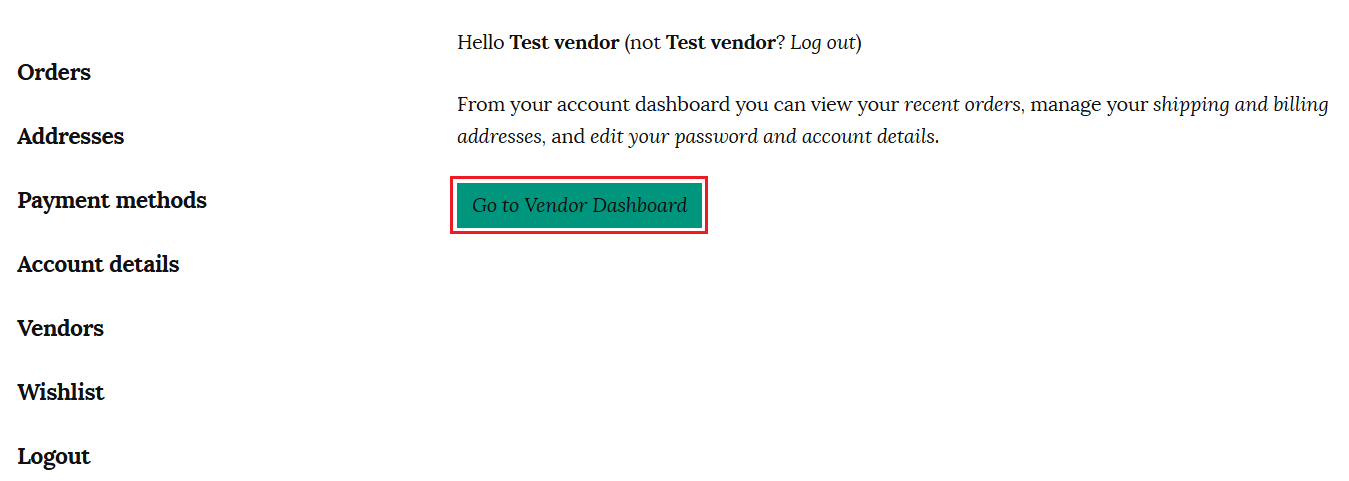
Once you have registered as a vendor, you will be given a “Go to Vendor Dashboard” button link visible as soon as you log in to your account. There is also a Vendor Dashboard link in the side menu.
Table of contents
Dashboard
Your vendor dashboard gives you an overview of your store’s performance.
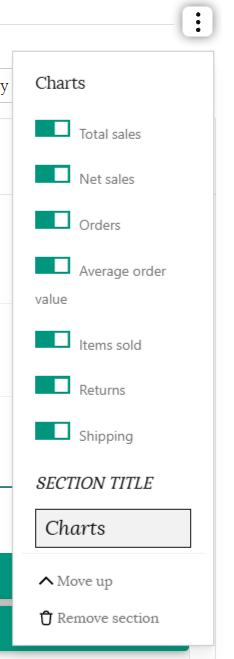
You can toggle on and off a variety of charts to view, and customise which sections you would like to be displayed. You can also choose your preference to display either line graphs or bar graphs.
Followers
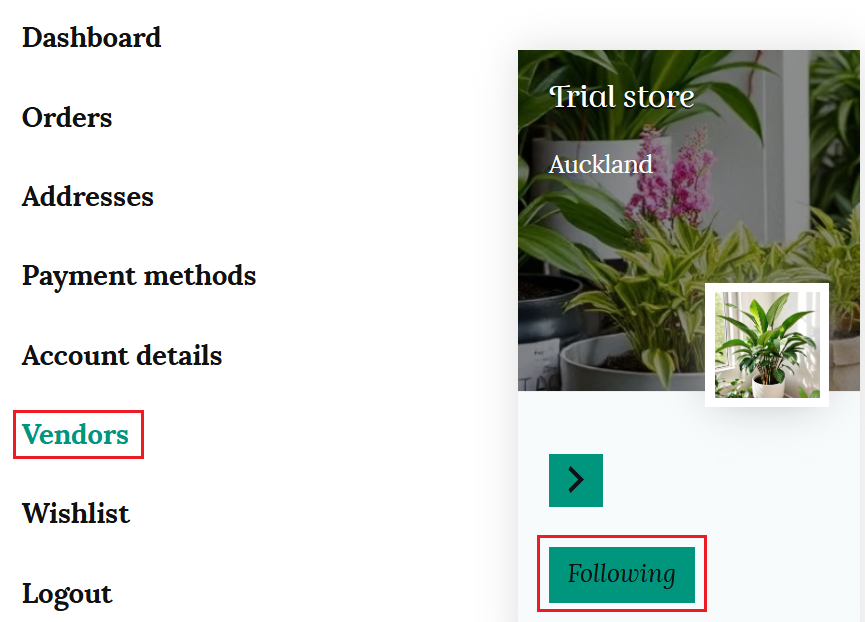
Customers have the option to follow vendors whose products they like and want to stay updated with. They will get email updates about that vendor’s newly added products.
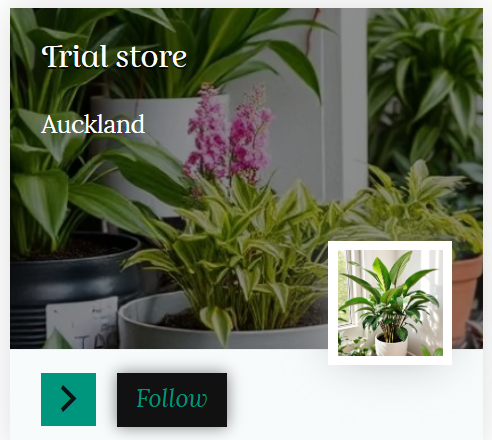
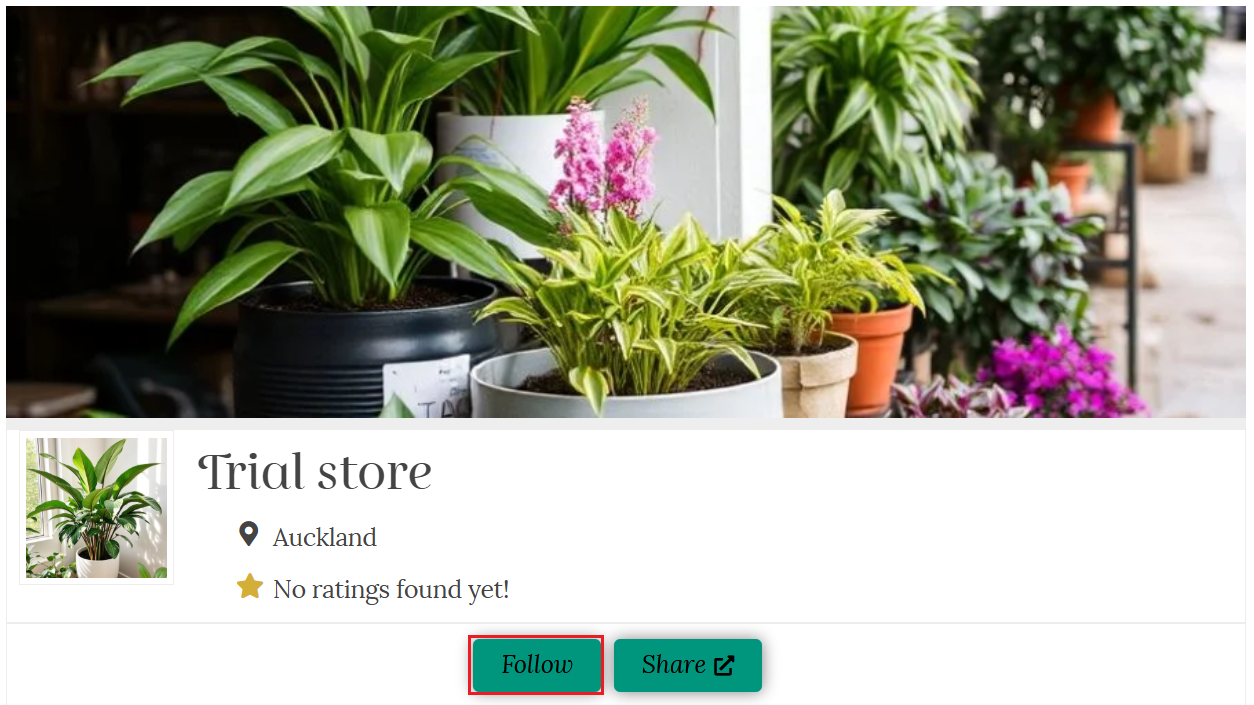
There are follow buttons in both the store list and on your main store page.
Clicking the follow button will add your store to the “Vendors” tab in the customer’s account.
When a customer follows your store, it will automatically show in the “Followers” section of your dashboard. You will be able to see the name and the time when that customer followed you.
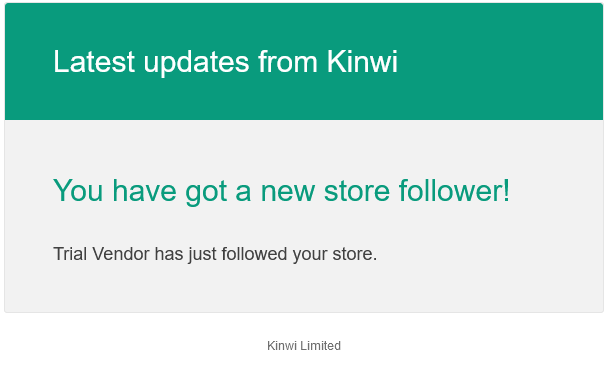
You’ll also receive an email when a customer follows or unfollows your store.
Product Q & A
Even though we recommend you include all relevant information and details on your product page, a customer may want to ask a more specific question about your product or store.
Your product page has a “Questions & Answers” tab to allow a customer to communicate directly with you.
Enabling customers to ask questions about a product helps increase their trust, allows them to make informed purchase decisions, and helps with community building and engagement. Customers must log in to their accounts to ask questions. The questions and answers will be posted on the product page, enabling customers to browse or search for a previously asked question.
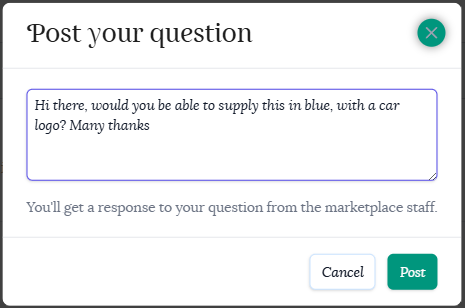
Once a customer clicks on the “Post your Question” button, they will be prompted to log in to their account if they haven’t already. Then a pop-up window will appear for them to post their question.
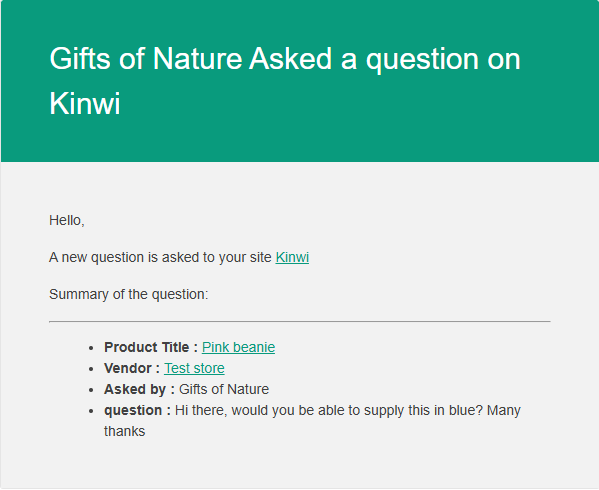
You will receive an email when a question is asked.
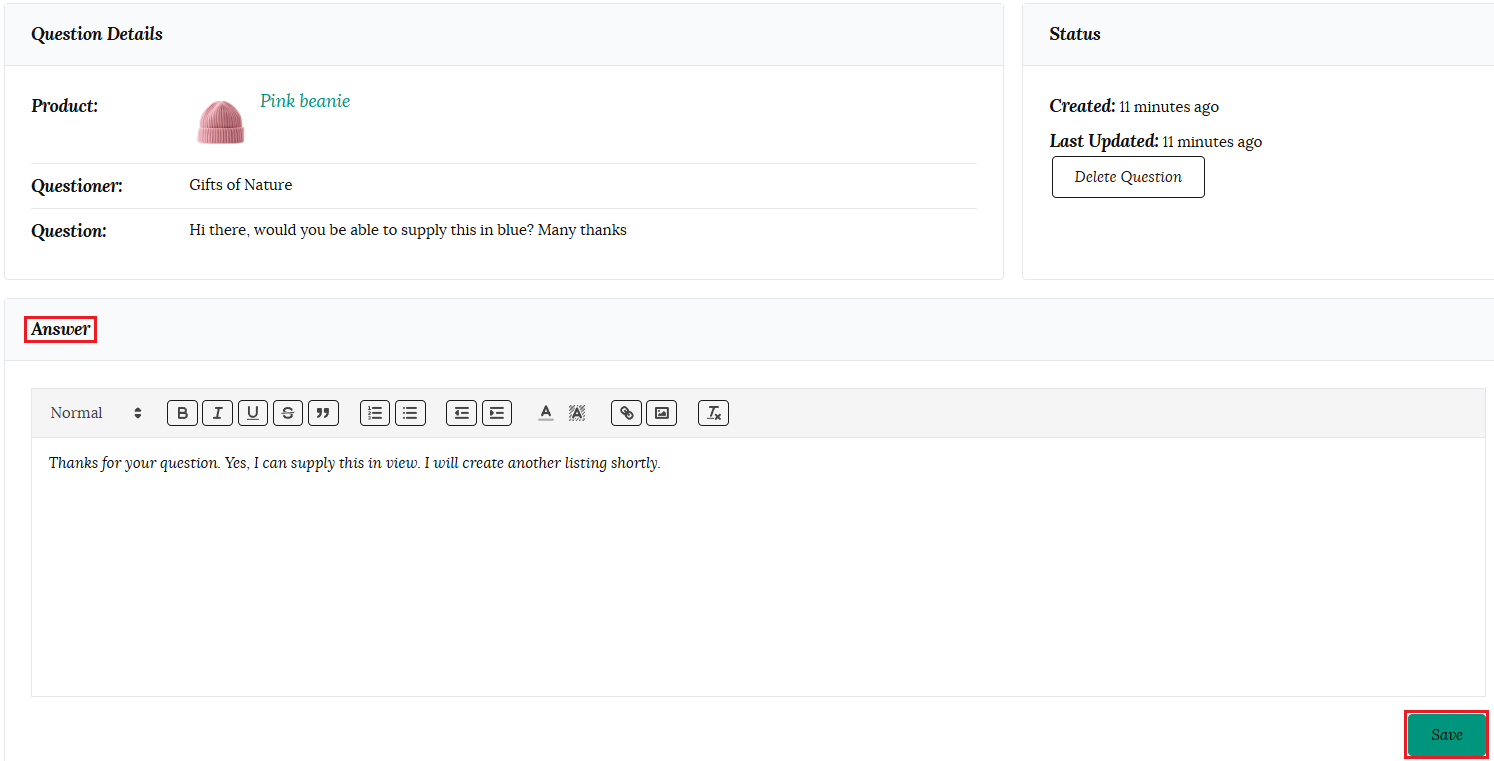
To answer any questions on your products, go to your “Product Q & A” tab in your dashboard. Here you will find a list of any questions that have been asked.
Click on the question or the 3-dot icon at the right-hand side of the question to view it. You will be redirected to the answer form, where you can type your response and click “Save.”
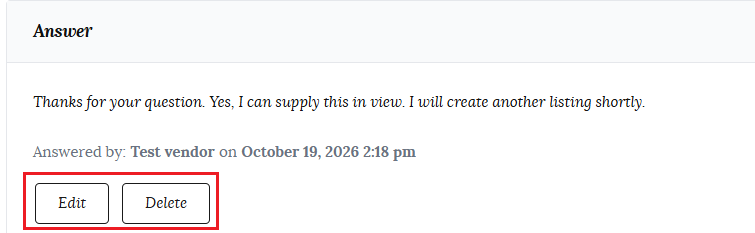
You will see the answer is now saved and will be posted on the product page.
The customer will receive an email advising them that their question has been answered, and providing a link.
You can use the Edit button to change your answer, or delete the question entirely. This allows you to ensure accuracy and relevance, and remove any inappropriate content.
Reviews
You can view and manage all customer feedback left for your store under the Reviews tab in your vendor dashboard.
Positive reviews are a wonderful addition to your store and will assist you in gaining trust and ultimately more sales.
Social proof gives your products and business added credibility: 55% of shoppers say that online reviews influence their buying decision, while 72% of buyers will take action only after reading a positive review.
If potential buyers are on the fence about whether or not to purchase your product, showing reviews from other customers can be the difference between them submitting an order or abandoning their cart.
Only customers who have purchased the item from your store can leave a review.
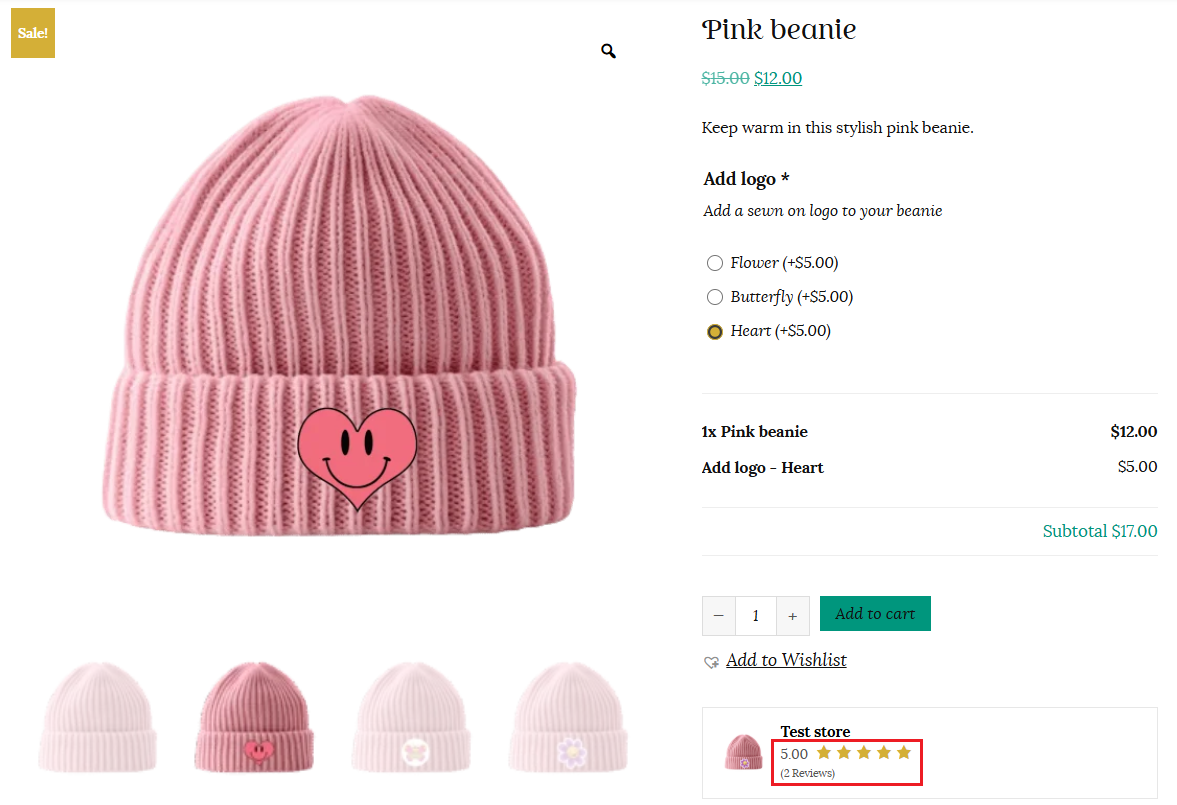
The average rating out of 5 stars will be shown under your store name in the store list, on your main store page, and on each product page.
Reports
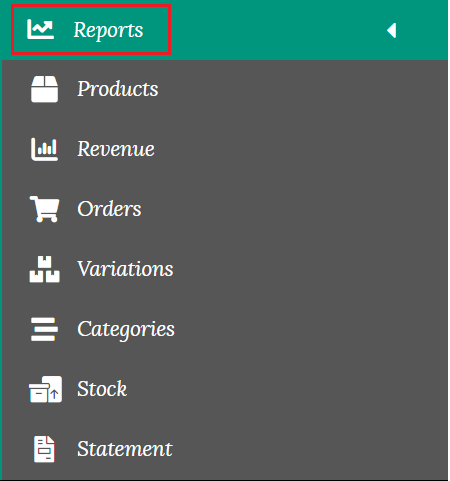
Clicking on the Reports tab in your dashboard will open a submenu, giving you the option to view statistics on your Products, Revenue, Orders, Variations, Categories, Stock and access your financial statement. Here you can get an overview of how your store is performing.
Each report allows you to view, search and compare by a chosen date range. You can view your statistics in a line graph, bar graph and a table for easy visualisation.
Products
Here you can view and search for your top-selling products, items sold, net sales, and number of orders.
Revenue
Here you can view your revenue by date, gross sales, returns, net sales, shipping, and total sales.
Orders
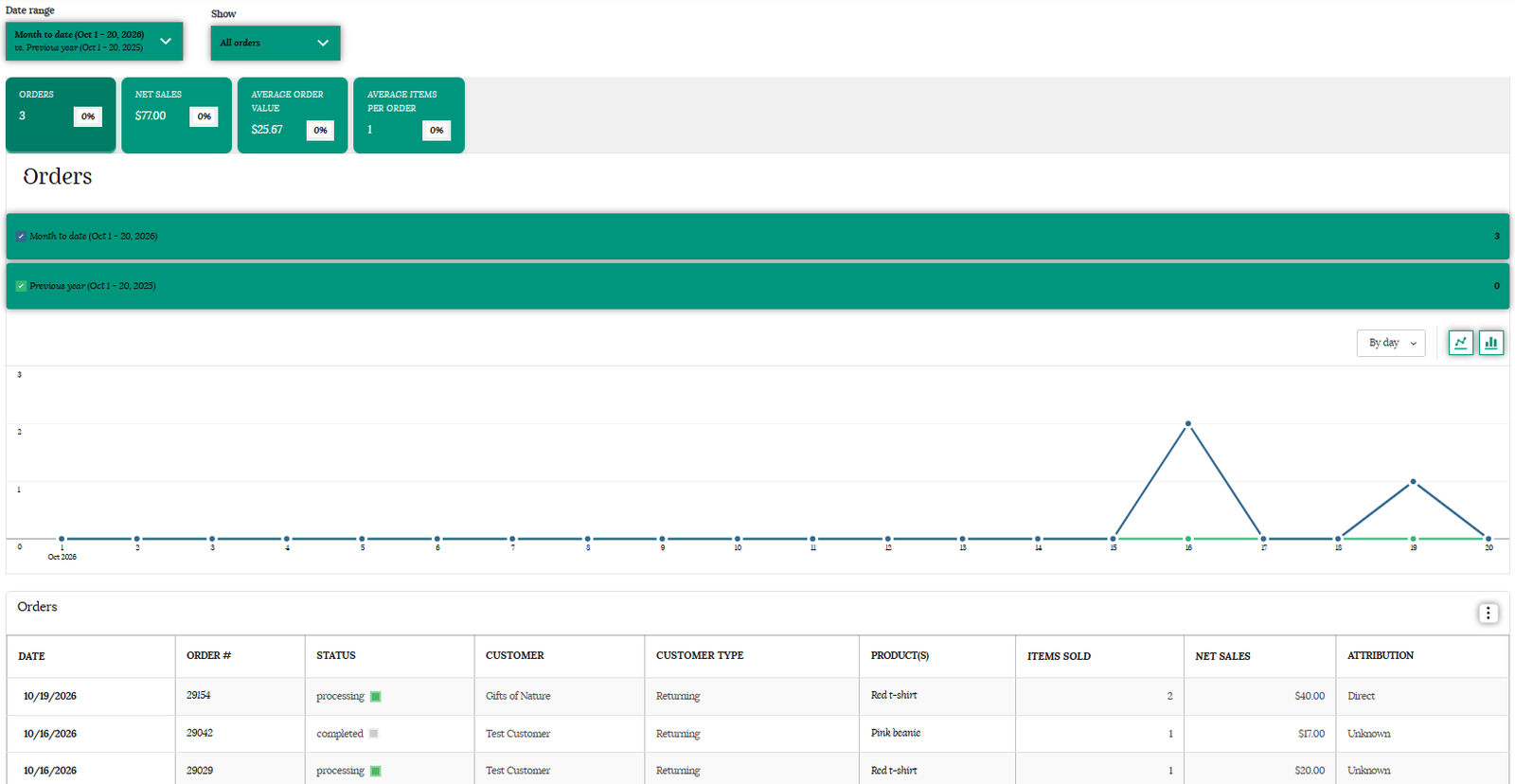
Here you can get the overall details of your orders. You can see average order value, average items per order, and the number of orders by date. You can also filter your orders using the Advanced filter option.
Variations
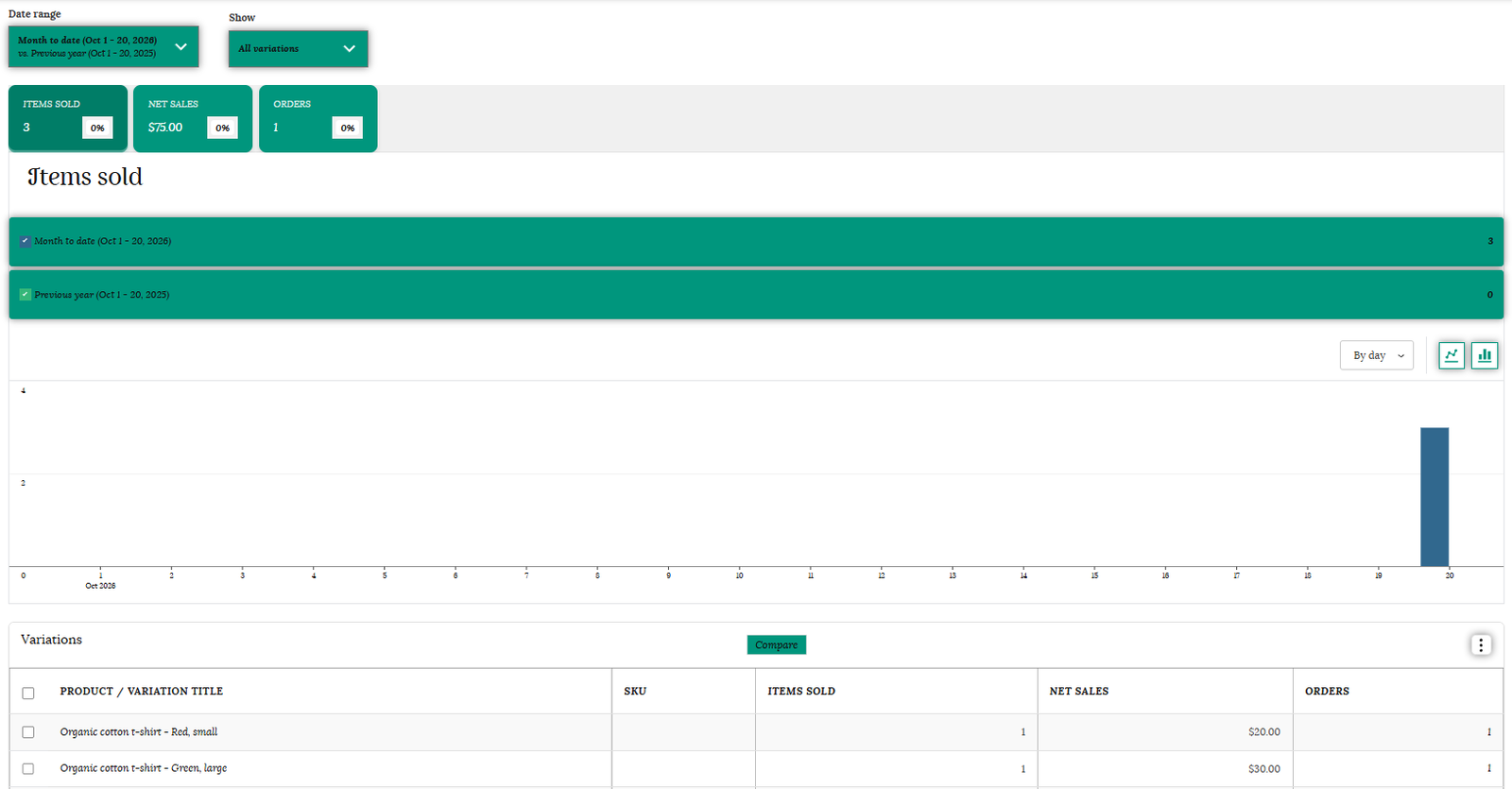
Here you can see your report section based on the product variation. You can easily view which variation of the product is selling best.
Categories
This section will provide a sales report based on your product categories. Here you can filter by a single category or compare multiple categories. You can also download the whole report.
Stock
Here you can easily view the stock status of all your products. You can filter your view by stock status; In stock, Low stock, or Out of stock.
Statement
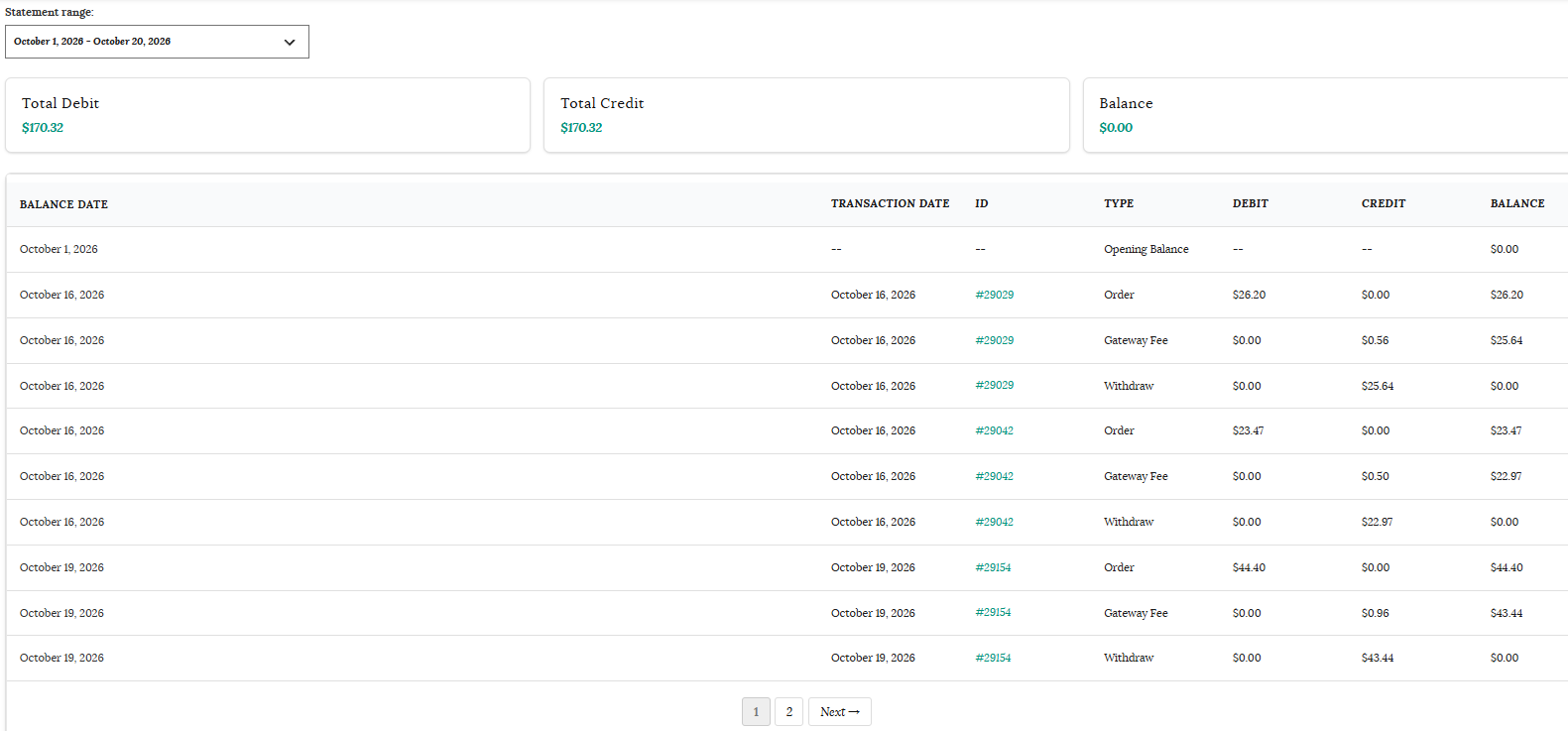
Your statement displays an itemised ledger of all your store transactions, showing earnings (credits) alongside fees and payouts (debits). It lists the transaction date, transaction ID, type, and running balance. You can download a copy for your records by clicking the “Export Statement” button.
Metric glossary
Metric
Description
Gross Sales
Sale price of product(s) × quantity ordered. Does not include refunds or shipping. Represents top-line revenue before deductions.
Total Sales
(Gross Sales – Returns + Shipping). It matches the amount that hit your payment gateway and is useful for reconciliation against payouts.
Net Sales
(Gross Sales – Returns). The actual product revenue kept, before shipping. Reflects true profitability trends.
Shipping
Shipping charges associated with an order or refund. Positive number = customer paid for delivery; negative = refunded shipping.
Orders
Number of new orders placed within a selected date range. Simple count of completed checkouts. Combine with Net Sales to see growth from customers or baskets.
Average Order Value (AOV)
(Net Sales / Orders). Shows the average amount each customer spends.
Items Sold
Raw count of units sold. Important for inventory forecasting and identifying best-sellers.
Average Items per Order
(Items Sold / Orders). Indicates typical cart size. A drop while AOV holds steady may mean fewer items per purchase, but higher-priced ones.
Products Sold
Distinct parent products (not variations) that have recorded at least one sale during the period. Reflects how many different SKUs are actually moving.
Variations Sold
Total count of product variations (e.g., size, colour) sold. Helps assess depth within each product line and informs restock decisions.
Total Products
Count of all published products in your catalogue. Snapshot of catalogue size. Consider pruning under-performing products if total products increase, but sales don’t.
In Stock
Products with stock > 0. These are the items ready to ship.
Low Stock
Products that have reached the low-stock threshold you set. Early warning for restocking before items are out-of-stock.
Out of Stock
Products with stock at 0. Cannot be purchased until replenished. May impact conversion if popular items are out of stock.
Total Credit
Sum of all credits in the vendor ledger, including earnings and manual adjustments. Increases your payout balance.
Total Debit
Sum of all debits in the vendor ledger, such as fees and withdrawals. Decreases your payout balance.
Balance
(Total Credit – Total Debit). The available amount for payment.
Contact Admin
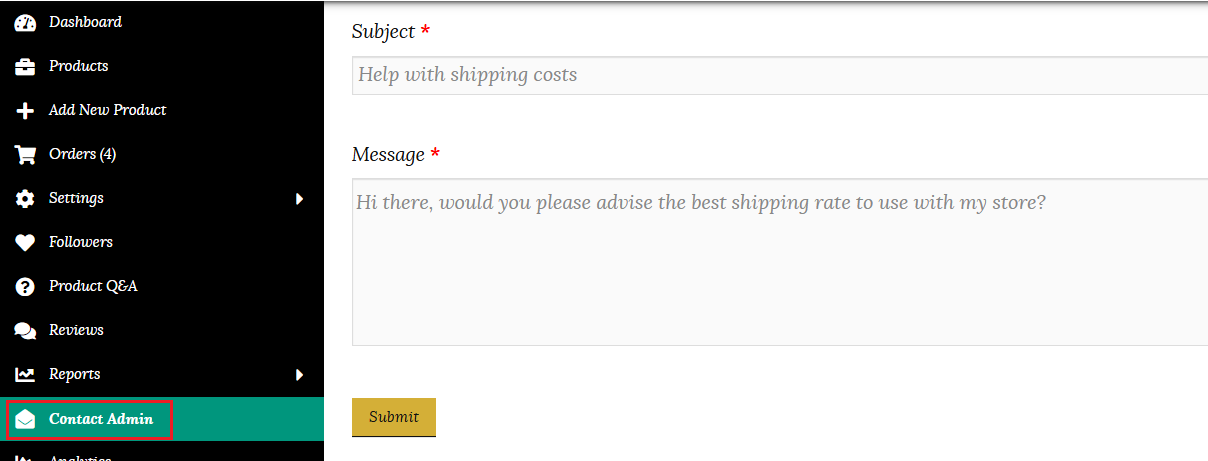
This tab will allow you to contact the Kinwi helpdesk directly from your store dashboard. Clicking on the Contact Admin tab will open up a contact form. Once you are logged in, your name and email address will be auto-populated. All you need to do is enter your query and hit the “Submit Query” button.
The Kinwi helpdesk will receive an email from you and reply directly on that same email thread.
Analytics
Click on the Analytics option from the sidebar of your dashboard. Here you can view your store metrics to gain data insights, measure and track performance.
Using your analytics data, you can easily find out your page views, bounce rate and top-performing pages. This will help you improve your copywriting and replicate what works well on your top-performing listings.
Once you know your top products, you can find out what your customers are doing on those pages, to help complete their journey to make a purchase from your store.
Vendor Guide
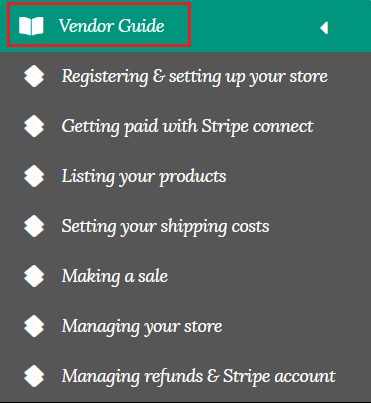
Here you can find our vendor guide with 7 different tutorials, to help you set up and run your store. Once you open a guide, you can easily scroll back and forwards through them for ease of use.
Announcements
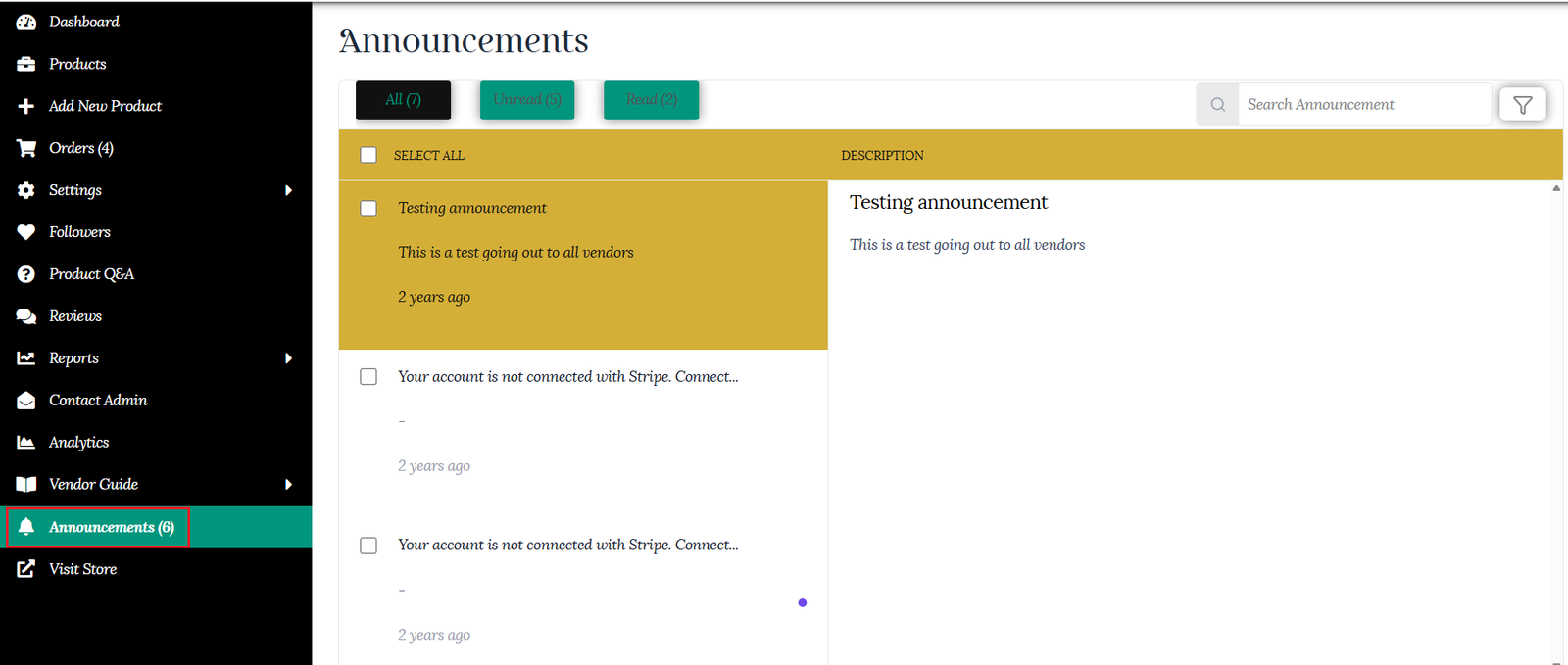
Any announcement from the Kinwi admin will be found under this tab.
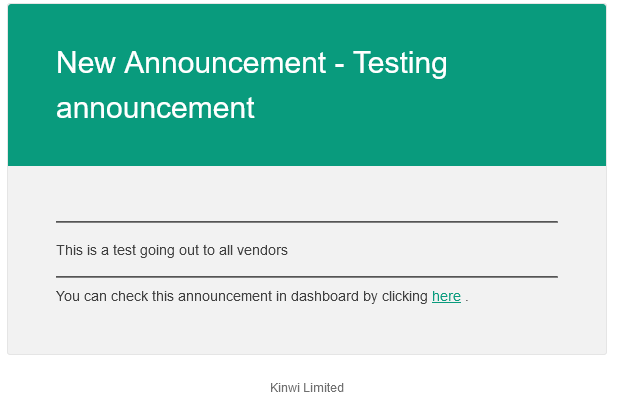
You will also receive an email letting you know the details of the announcement.
Support tickets
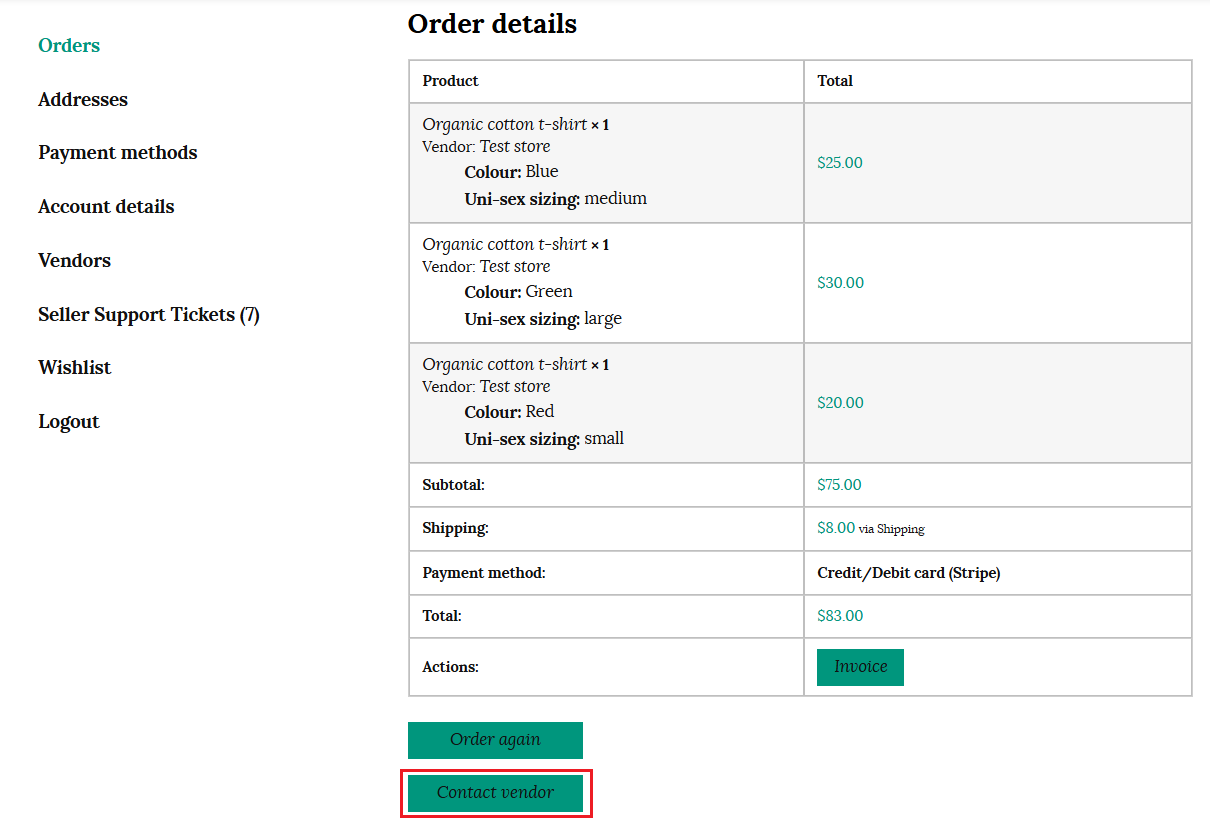
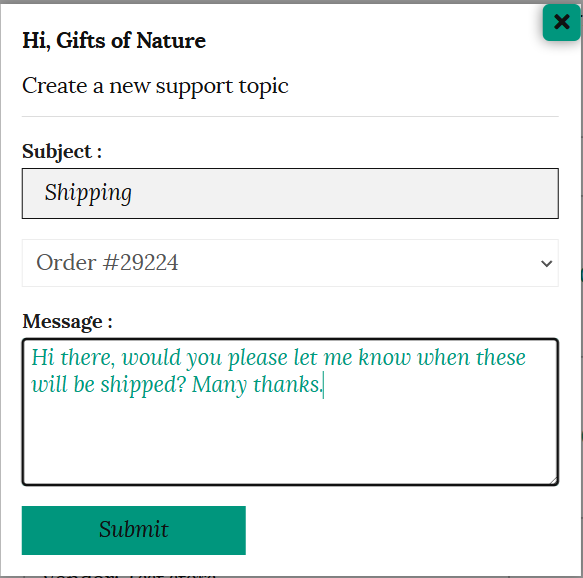
This feature lets customers generate a support ticket for a product they have purchased from you. A “Contact vendor” button will show on their order details.
When the customer clicks the button, a pop-up form will appear for the customer to fill in and submit.
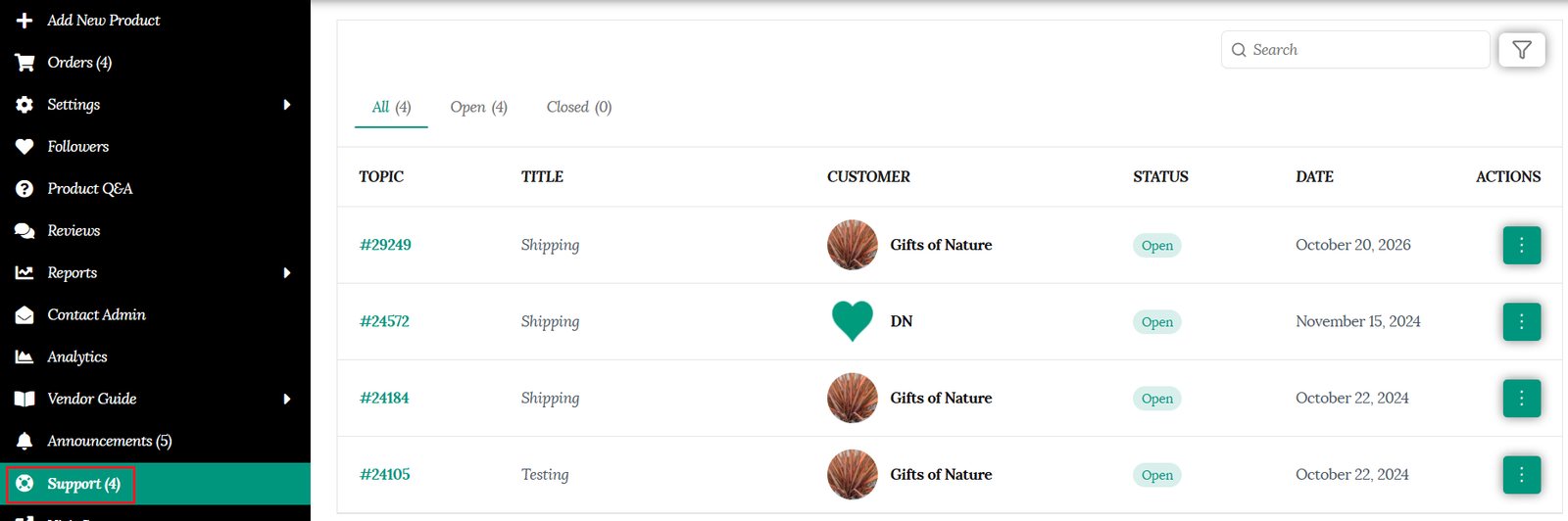
You will find your support tickets on your dashboard under “Support,” and you will also receive an email notification that a customer is waiting for support with a link to reply.
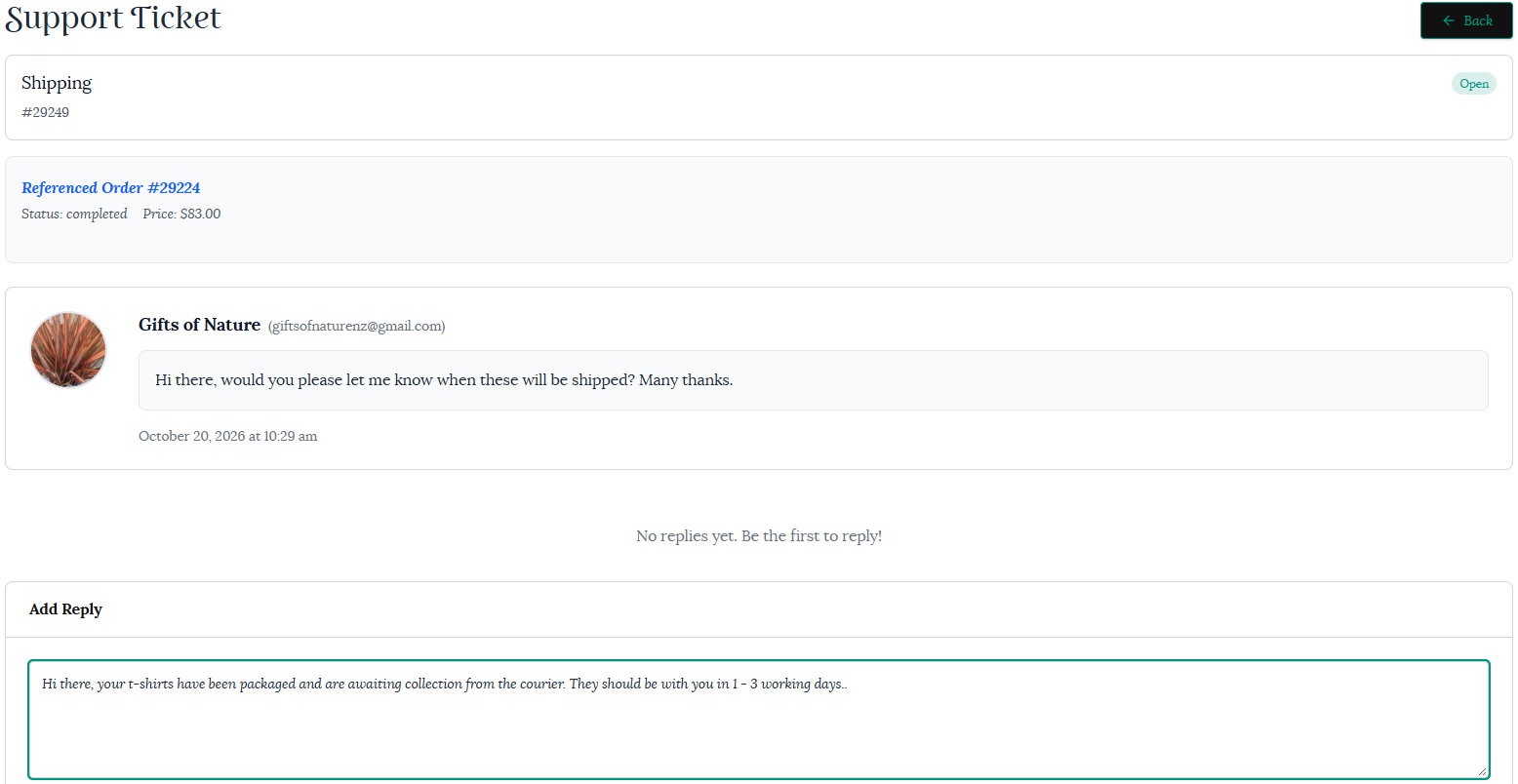
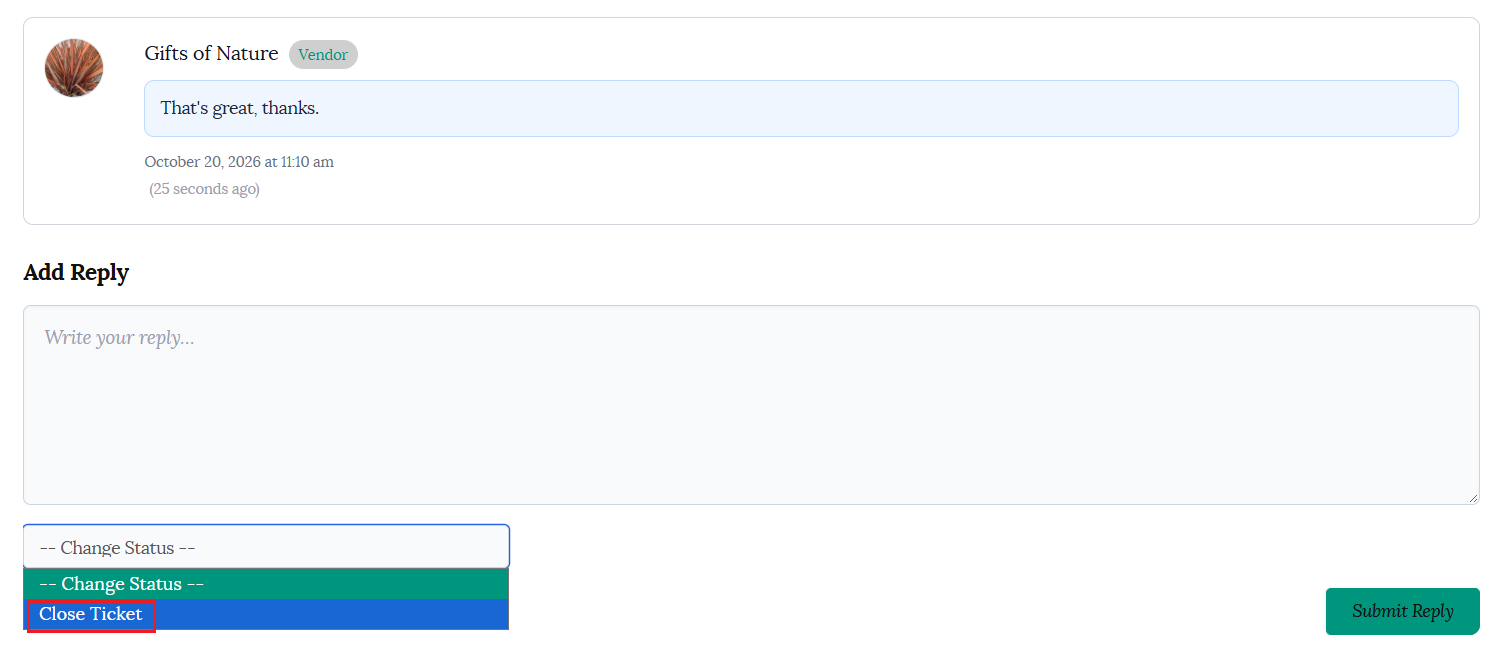
Click on the ticket number, provide a reply and click the “Submit Reply” button to send this to the customer.
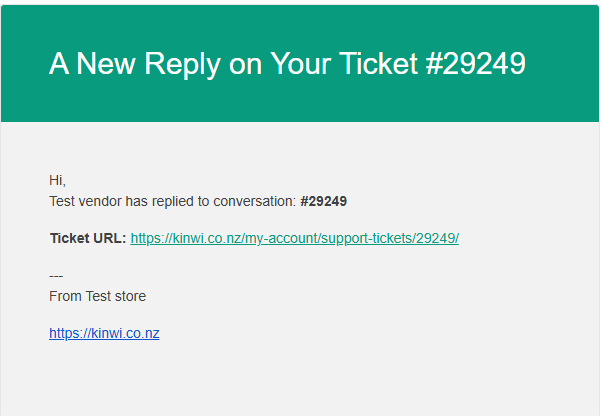
The customer will receive an email with your reply and a link to respond if needed. You can keep communicating on the same thread.
Once the issue has been resolved click the “Close Ticket” button.
Going on vacation
This is a useful tool if you are going to be away and will not be able to access your store to fulfil orders for a set period.
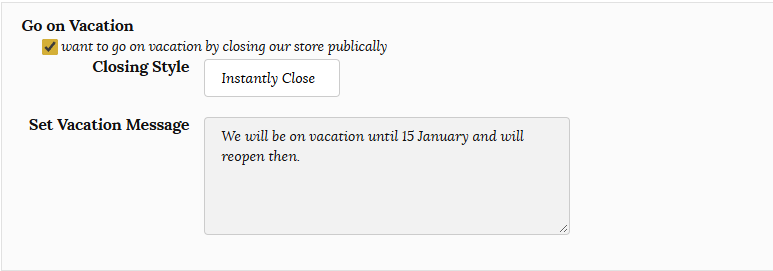
Navigate to Settings > Store on your dashboard. Scroll down to the “Go on Vacation” section near the bottom.
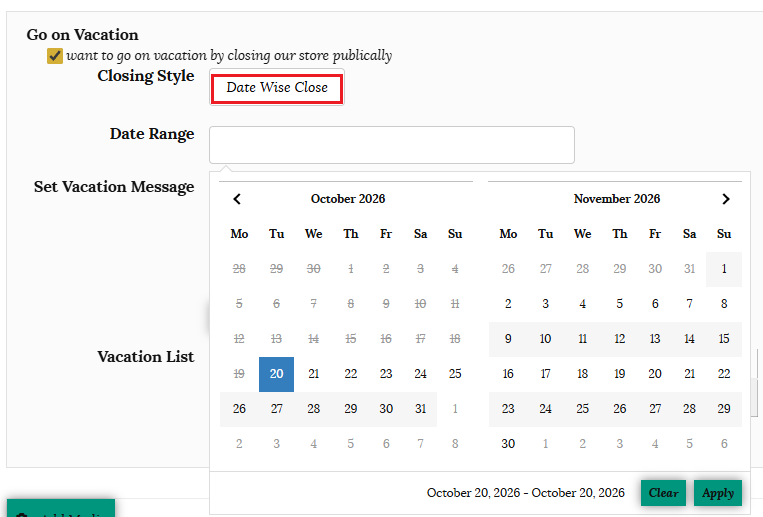
Tick the “Go on Vacation” box. You will then have the option to “Instantly Close” your store or select a “Date Wise Close.” The “Date Wise Close” allows you to select a date range that you will be away. Your store will automatically close and reopen on the selected dates.
Write a message that you would like displayed to customers and click the “Update Settings” button to action this.
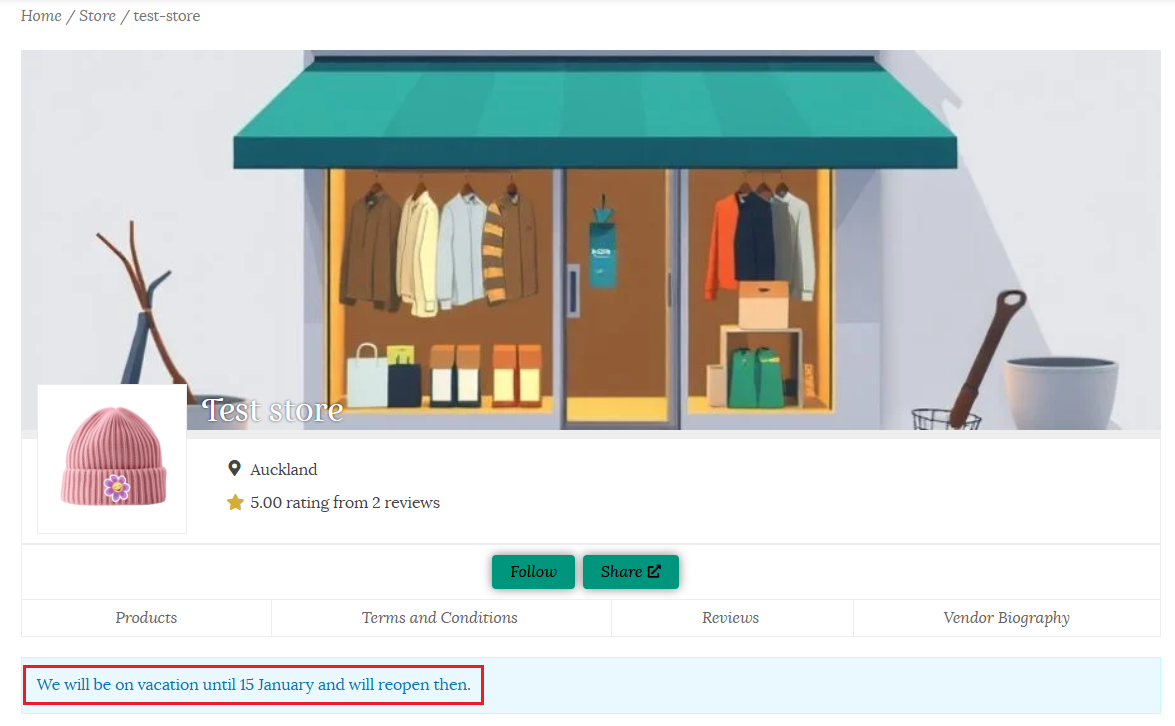
This message will be displayed to the customer when they visit your store page, as well as be shown on your product pages. The customer will not be able to purchase your items as the “Add to Cart” button will be hidden.
Your store will automatically reopen on the selected date if you have selected a date wise close. Otherwise, once you are back, uncheck the “Go to Vacation” box and click the “Update Settings” button to enable customers to purchase your products again.
Please reach out if you need further assistance in managing your store. You are welcome to contact us here or use the “Contact Admin” tab in your vendor dashboard. We are happy to help.