Congratulations! You have made your first sale. Now what?
You will be notified by email, once you have made a sale. The customer contact details and the shipping address will be provided to you.
We expect you to safely package your item and book it in for dispatch within 2 working days. For custom made items the dispatch timeframe will be longer.
There can be a wide variation in shipping charges, depending on your address. We advise that you shop around for the best service. Some links were provided in our “Setting your shipping costs” tutorial. If you have a large item, such as furniture or antiques, you can advise the customer to get a quote for pick up from Wise Move.
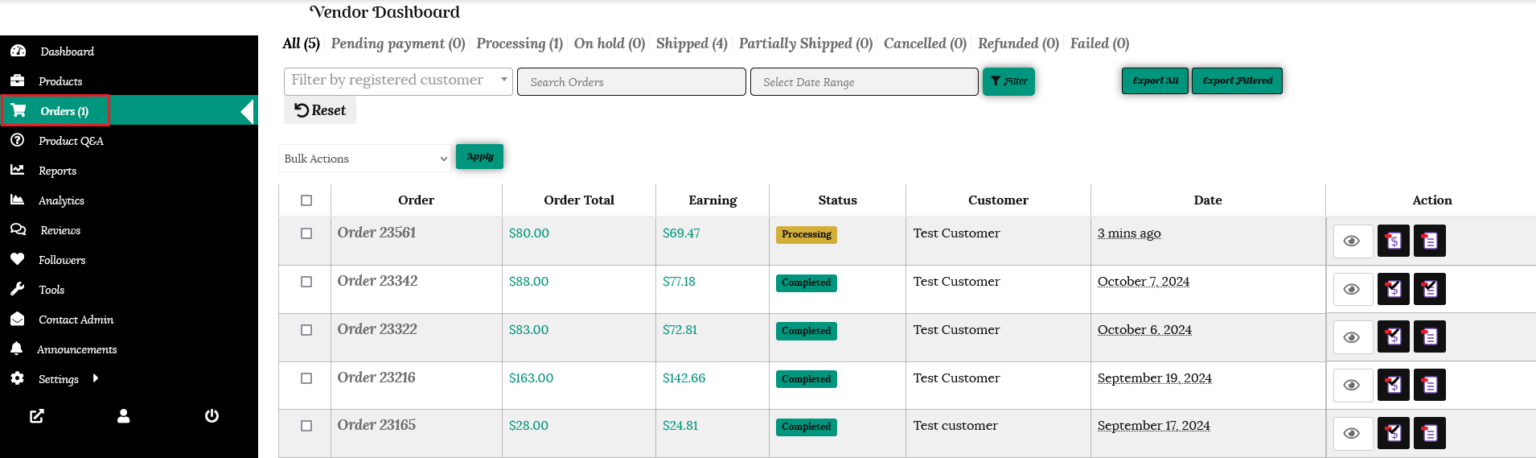
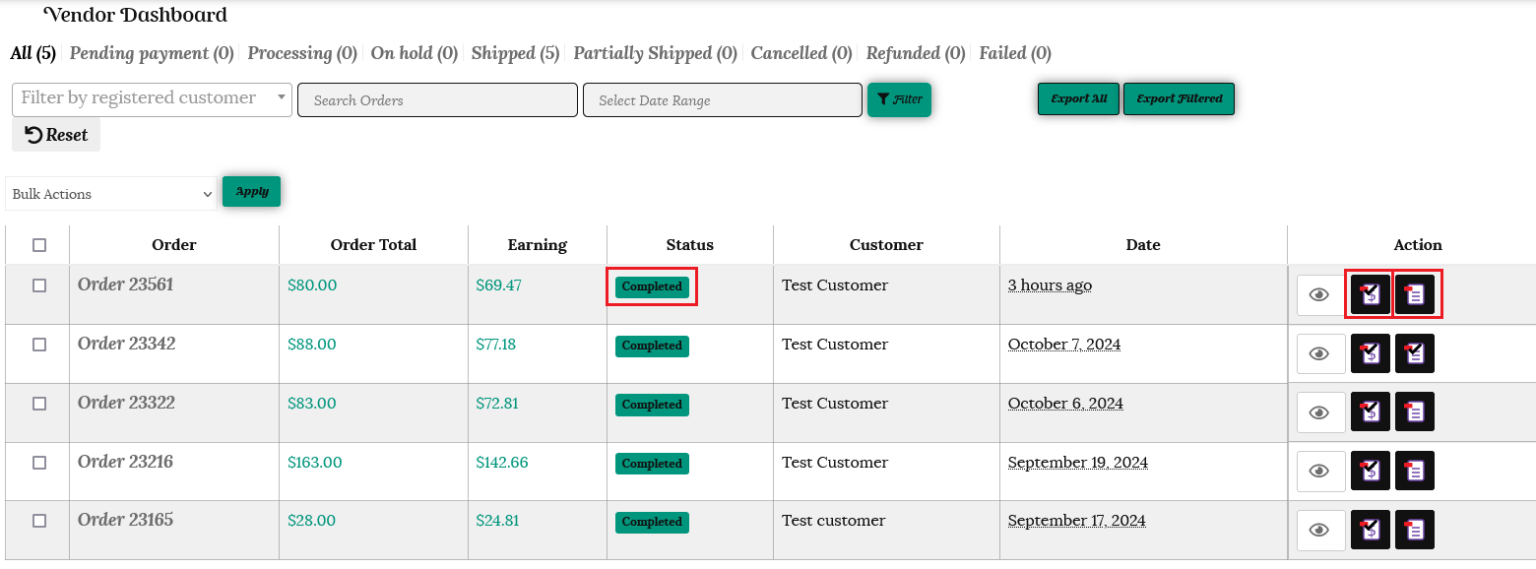
Your new order will be displayed under your “Orders” tab in your store dashboard, in descending order of the date placed. So new orders will be at the top.
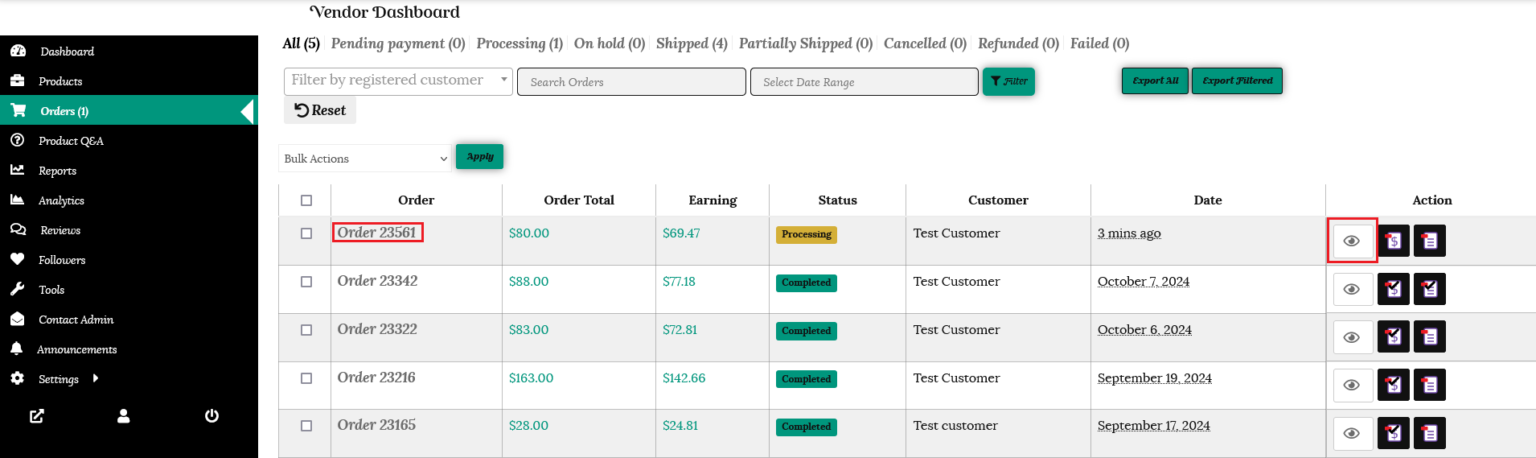
Click on the eye icon, or an order number to view the details for that order.
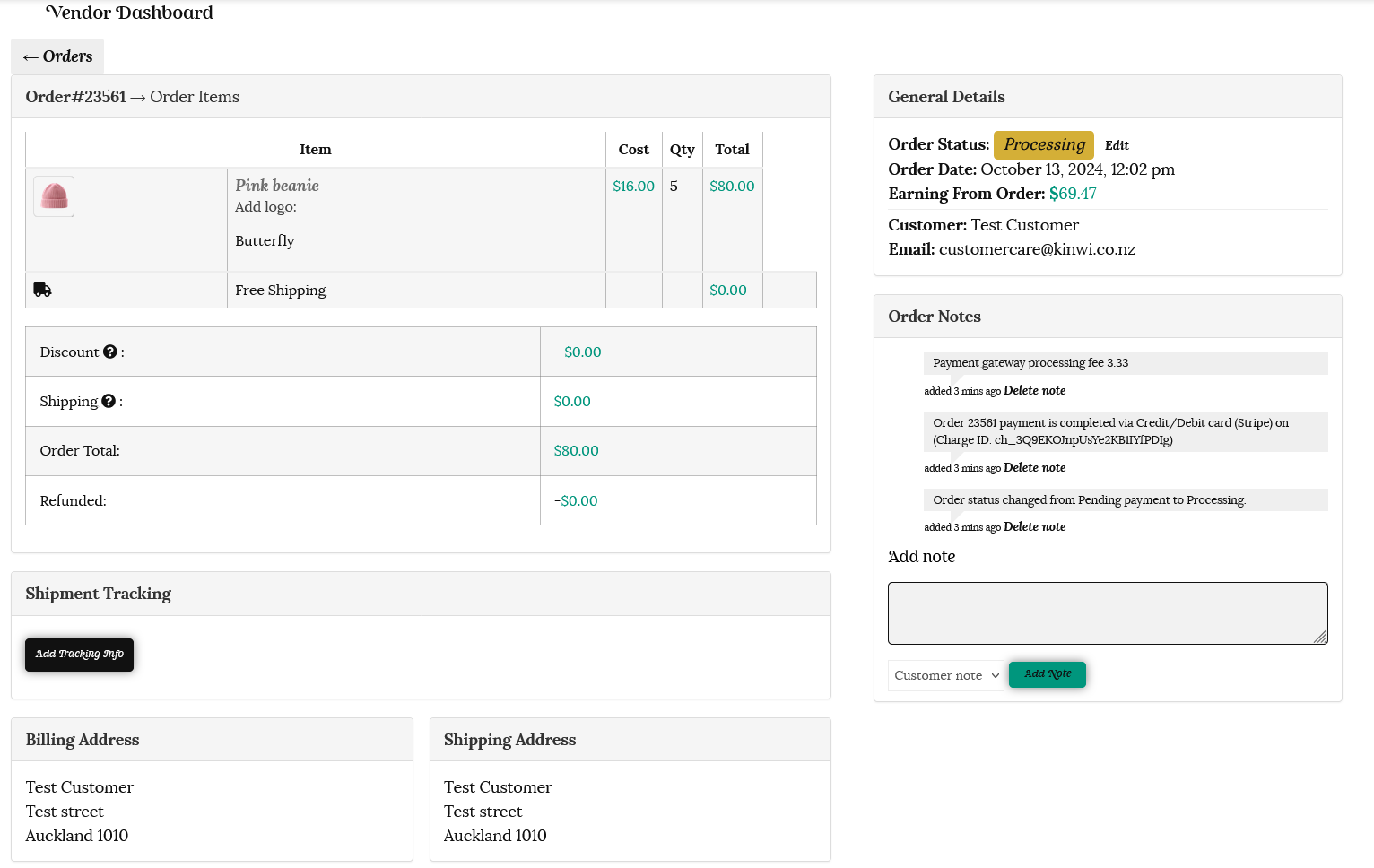
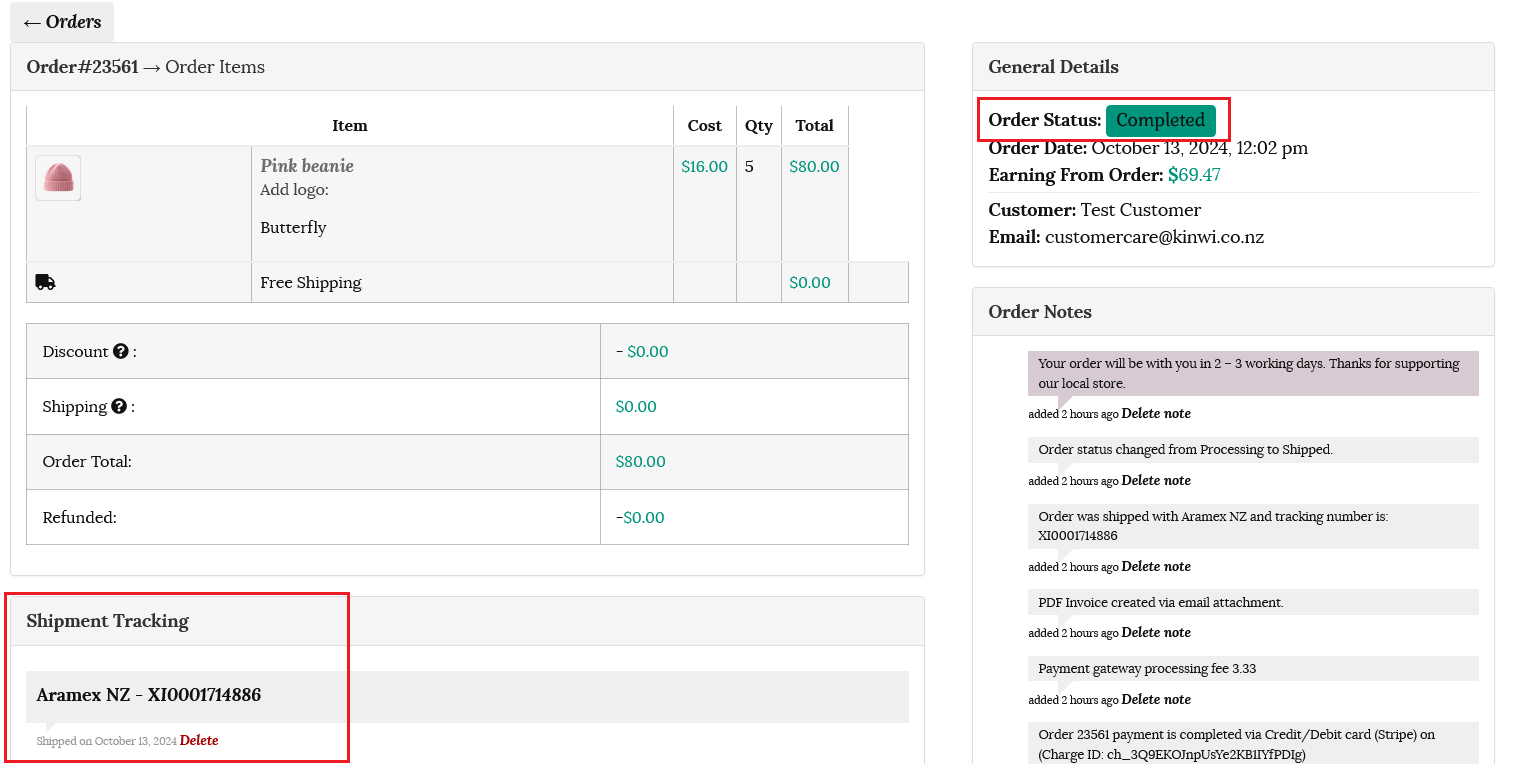
Here you will find the customer details, including shipping address and contact email address. You will also be able to see your earnings from this order, the order status, payment processing fee and updated stock levels for the product.
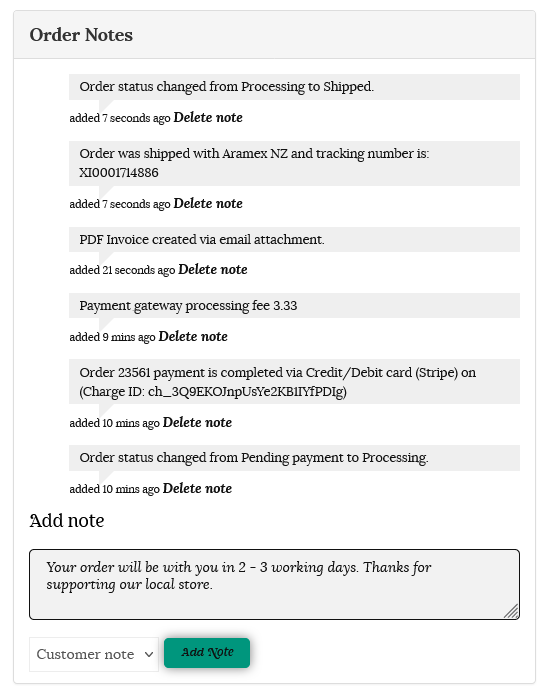
You also have the option of adding a note to send to the customer, or as a personal reminder if you select “Private note” from the dropdown.
Creating a shipment
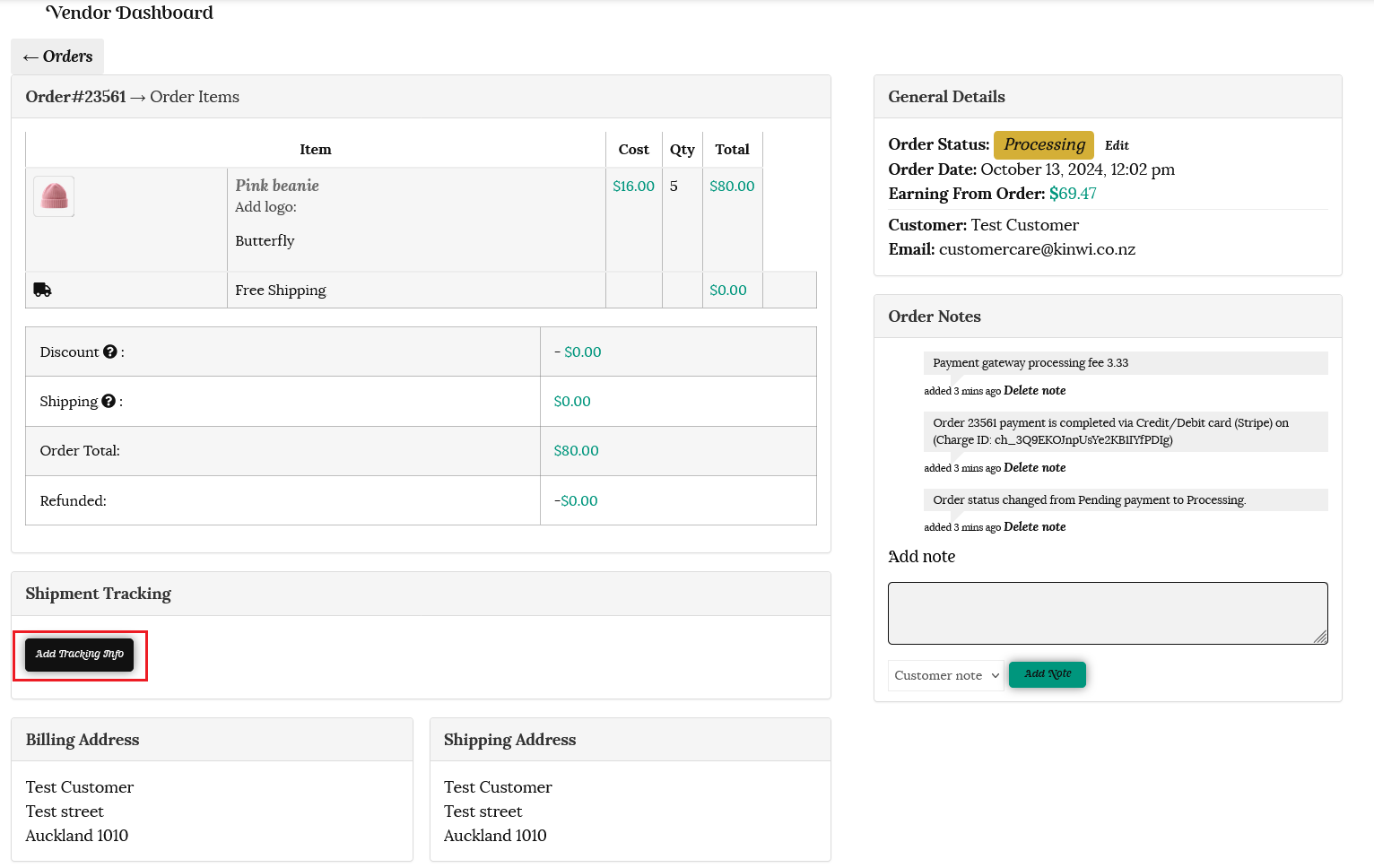
Once you have safely packaged the customer’s order and it is ready to go, you can create a shipment by adding the tracking details. Scroll down and click on the “Add Tracking Info” button.
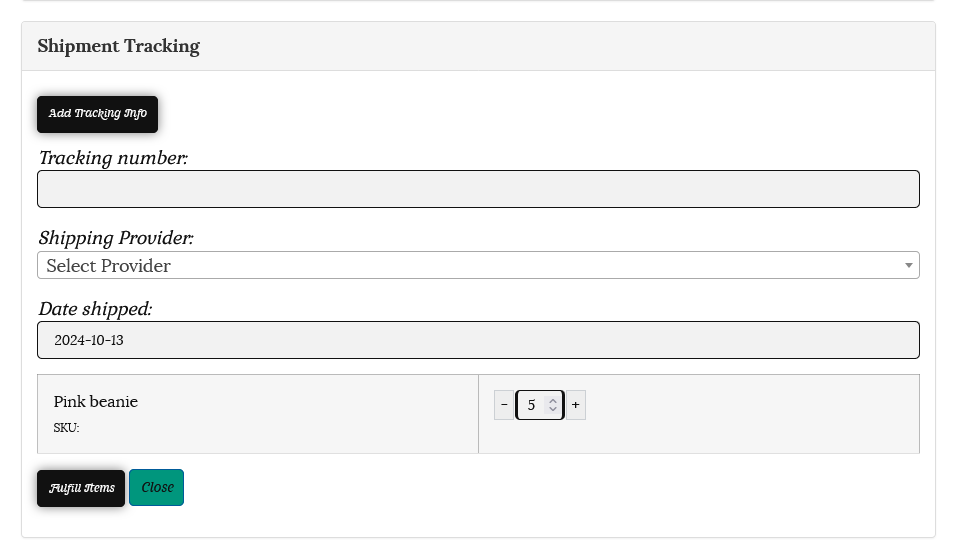
A new section will open up to allow you to add your shipping details.
1/ Select items – the items in the order will be listed with the quantities purchased. If you would like to send the order in a split shipment, then choose the items/quantities being sent for this shipment.
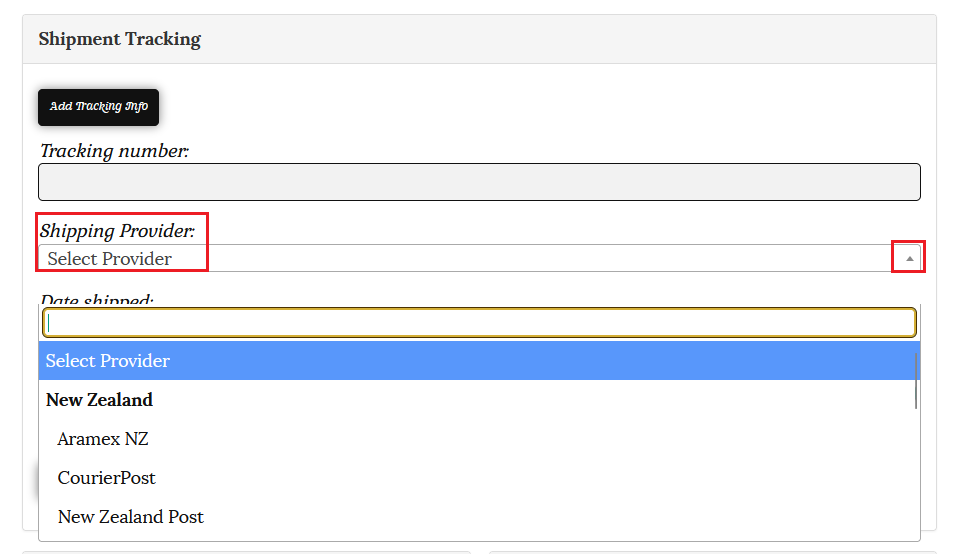
2/Shipping Provider – choose your shipping provider from the dropdown menu. Please contact us if you use an alternative carrier and we can add them to the list.
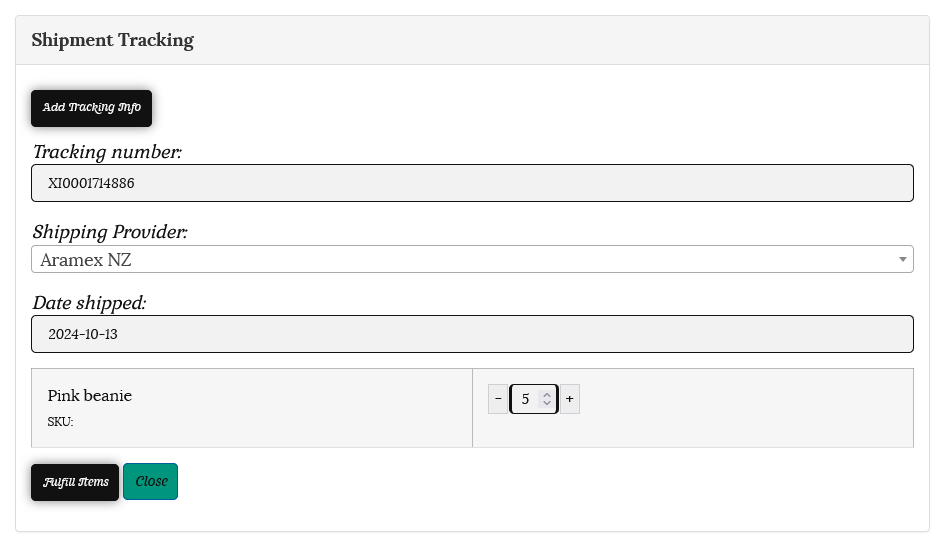
3/ Enter the tracking number for your shipment and the date shipped.
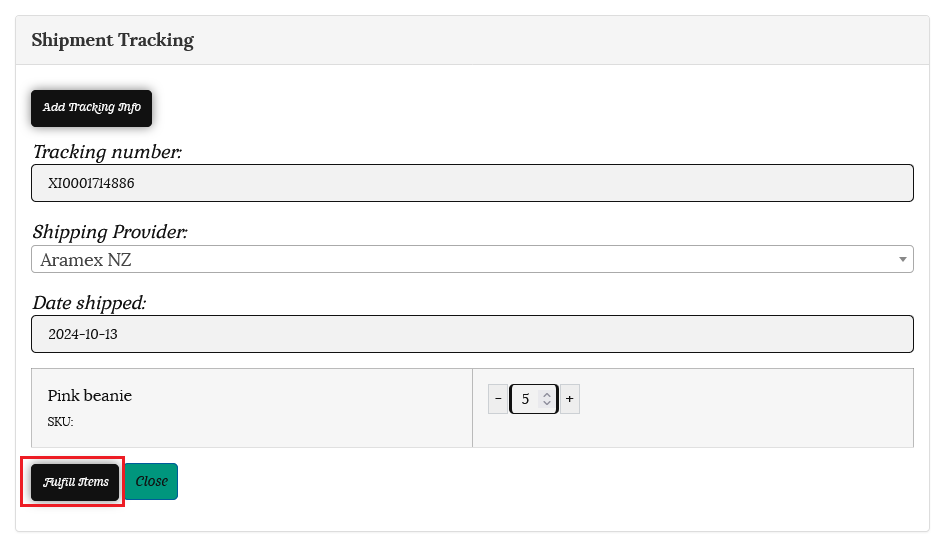
4/Once you have completed the details, click on the “Fulfil Items” button.
The shipment tracking will now show on the order details and the order will show as completed.
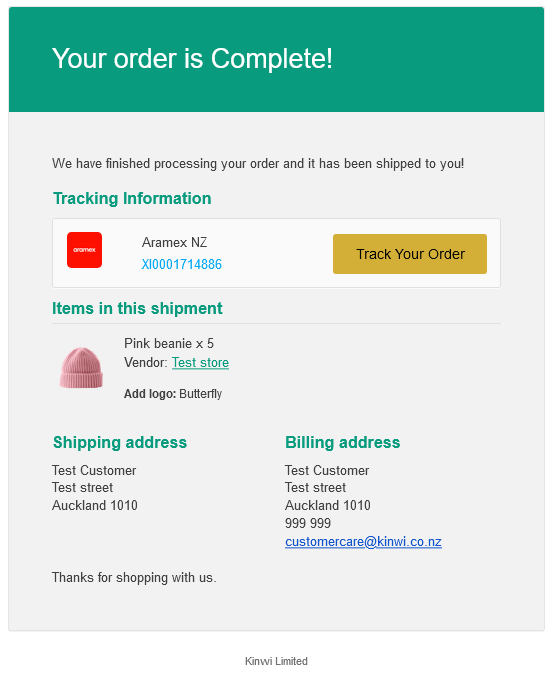
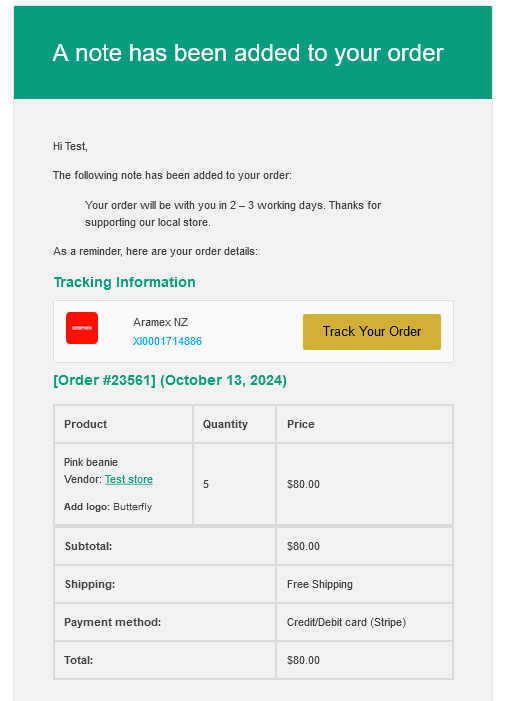
The customer will receive an email containing the shipping details with a link to the tracking details with the carrier.
They will also receive a PDF invoice as an attacment to the email.
The order will now show as completed in your order list. The customer automatically arecieves a PDF invoice once the order is shipped. You can also download a PDF packing slip and invoice using the buttons on the right.
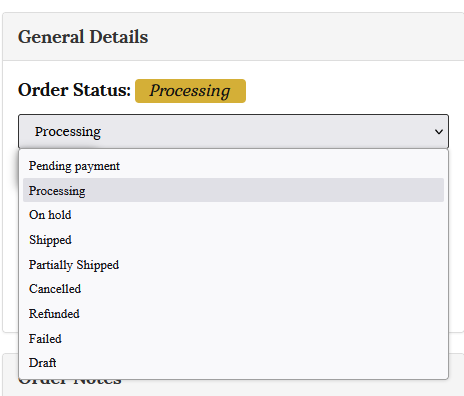
You are able to edit the order status to suit using the dropdown menu. Options include; Shipped, partially shipped, cancelled, refunded.
Order Notes
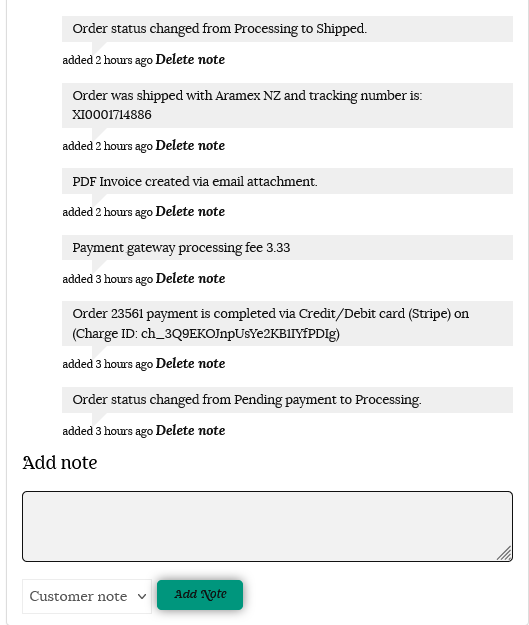
Order Notes contain details of the order, and include payment details, processing fees and shipping details.
You are able to add either a private note, or a customer note at the bottom. If you add a customer note, the details will be sent directly to the customer once you click on the “Add Note” button.
This is an example of the email the customer will receive.
Please reach out if you need further assistance in managing your orders. You are welcome to contact us here or use the “Contact Admin” tab in your vendor dashboard. We are happy to help.